Properties, Properties, and more Properties: How to Set Properties in Epicor Kinetic
by Bryan Spencer
When we were writing .net code in classic customizations it was easy to change a controls property simply by setting the property in code. Like most things, this is a very different in Kinetic. Enter the Property-Set widget… This is a very simple widget that allows access to most control’s properties.
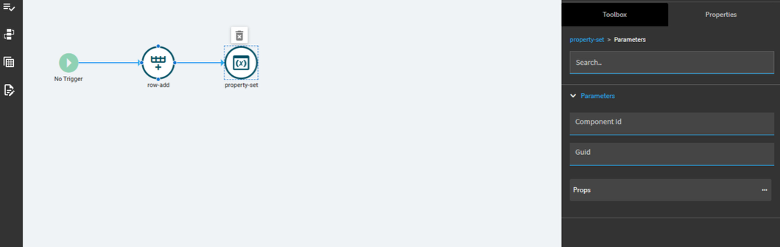
This key to this is to get the correct property name and yes, it is case sensitive. To accomplish this, we use the debug console’s “Log all component models”. This option will dump all controls and properties that are currently in the DOM to the debug console. The details of the debug console is outside the scope of this article so I won’t go into all the details. To access this open the debug consol, turn on debug logging, open command window (control + k) , Log all component models.
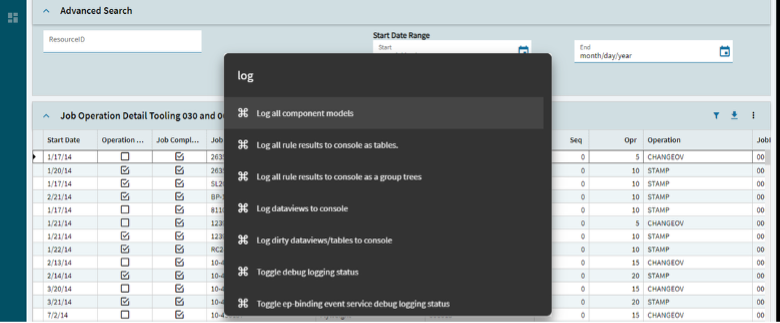
All the objects currently in the DOM are displayed along with there properties. You can interrogate this to get the controls ID and the property that you want to change. In our example I wanted to make a div hidden based on a button being clicked.
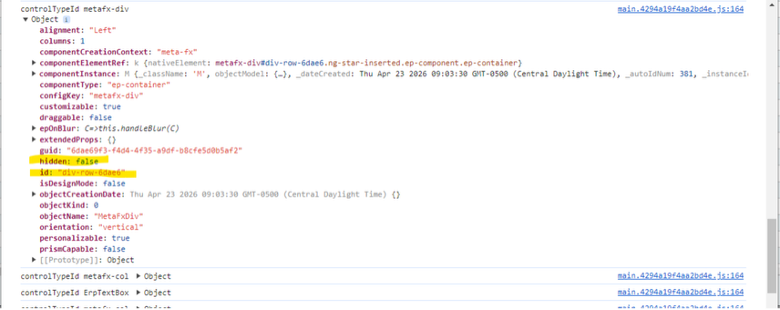
Back in the property set widget I configure the component id and then add a property called hidden and set the value to true
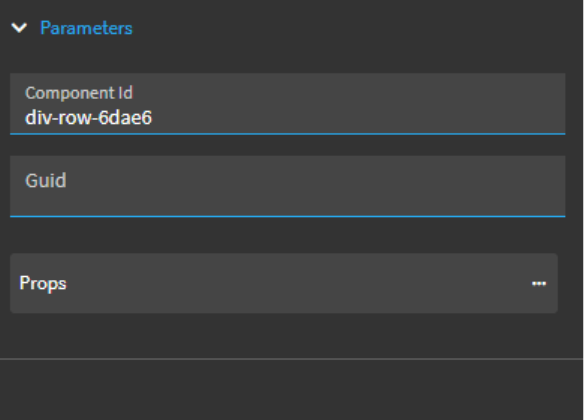
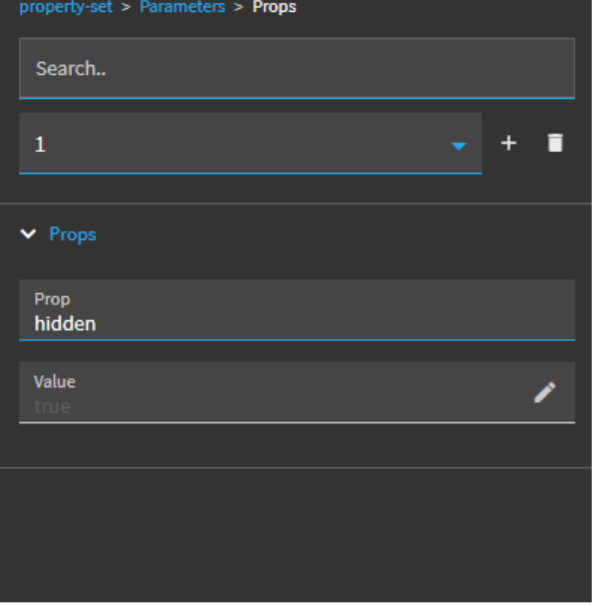
Now when this event is fired the div and all controls in the div will be hidden. This is also useful when needing to refresh and combo box’s dropdown value. To force a refresh, you can set a combo box’s invalidated property to true.